
Created a YouTube playlist? Learn how to make it private or public; change the settings in minutes..
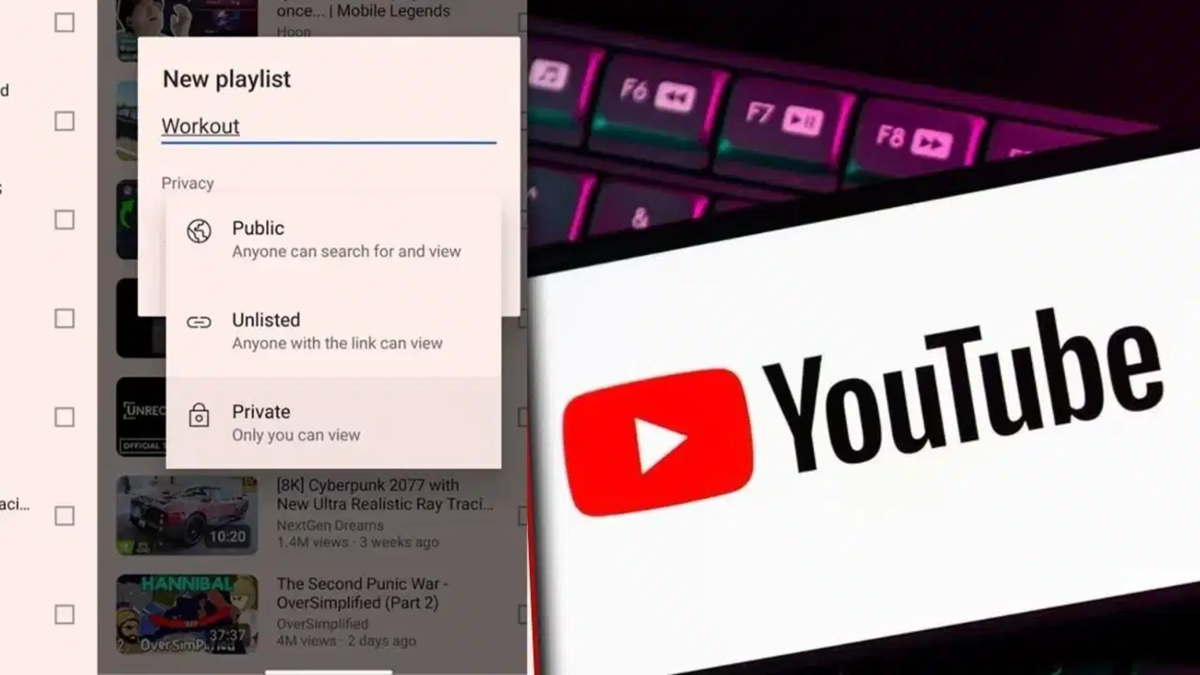
Everyone knows how to watch videos on YouTube, but did you know you can organize your favorite videos into a playlist and control its privacy settings? You can choose whether your playlist is visible only to you, accessible to everyone, or viewable only by those who have the link. If you have already created a playlist and want to change its settings, it is quite simple. Let’s understand in simple terms how to set a YouTube playlist to Private, Public, or Unlisted.
Difference between Private, Public, and Unlisted
Public Playlist: Anyone can view this. The Public option is useful if your playlist contains videos you want to share with friends or others.
Private Playlist: This is visible only to you. Others cannot view your playlist by searching for it or visiting your channel.
Unlisted Playlist: This does not appear in general YouTube listings, but anyone with the playlist link can view it. Therefore, it would not be accurate to consider it completely private.
How to change playlist privacy on mobile?
If you use YouTube on your phone, follow these simple steps:
First, open the YouTube app.
Go to the 'You' tab or your Library section (usually found at the bottom or in the profile section).
Now, go to Playlists.
Open the playlist for which you want to change the privacy settings.
Tap on the 'Edit' option (represented by a pencil icon) next to the playlist.
You will see the Privacy or Visibility option.
Select your preferred option: Private, Public, or Unlisted.
Finally, save the settings.
Your playlist's visibility will then be updated.
How to change it on a computer?
If you are using YouTube on a laptop or computer, the process is even easier. Open YouTube and log in to your account. Then, go to the 'You' or Playlists section and select the playlist you wish to modify. Click on the 'Edit' option for the playlist. Here, you will find the Privacy or Visibility settings. Choose Public, Private, or Unlisted based on your preference and save the changes.
Disclaimer: This content has been sourced and edited from TV9. While we have made modifications for clarity and presentation, the original content belongs to its respective authors and website. We do not claim ownership of the content.
