
Create Custom WhatsApp Stickers on iPhone: Easy Guide to Make and Share Your Own Stickers
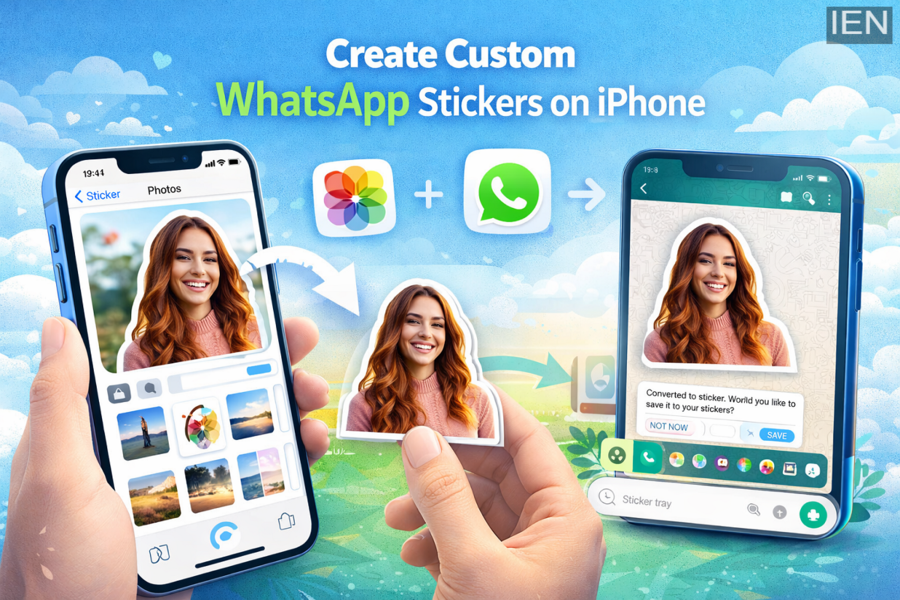
Custom stickers have become one of the most popular ways to make conversations more expressive and fun on WhatsApp. Now, iPhone users can finally create their own stickers directly from their photos—without relying on third-party apps. Thanks to recent updates and iOS advancements, the process is faster, simpler, and more intuitive than ever before.
If you’ve ever wanted to turn your favorite photos into personalized stickers, this complete guide will walk you through everything—from requirements to step-by-step instructions and important tips.
What’s New for iPhone Users?
Earlier, creating custom stickers on iPhones required workarounds or even using Android devices. But now, with the integration of advanced features in iOS and updates to WhatsApp, users can generate stickers directly from images stored on their device.
This feature uses iOS’s ability to isolate subjects from photos, allowing you to extract a person or object and instantly convert it into a sticker.
Key Requirements You Should Know
Before you start creating your own stickers, make sure your device meets the following conditions:
-
An iPhone running iOS 16 or a newer version
-
The latest version of WhatsApp installed
-
Photos saved in your device’s gallery (preferably clear subject images)
The subject isolation feature works best when the image has a clearly defined foreground, making it easier for the system to separate it from the background.
How to Create Custom Stickers on iPhone
Follow these simple steps to turn your photos into WhatsApp stickers:
-
Open the Photos app on your iPhone.
-
Browse and select the image you want to use.
-
Press and hold on the subject of the photo until it gets highlighted and separated from the background.
-
Once the subject is lifted, drag and drop it directly into a WhatsApp chat window.
-
WhatsApp will automatically detect the image and prompt you to convert it into a sticker.
-
Confirm the option, and your custom sticker will be created instantly.
That’s it—your personalized sticker is now ready to use.
How to Share and Use Your Stickers
Once created, the sticker is automatically saved in your WhatsApp sticker library. You can:
-
Send it in chats just like any other sticker
-
Reuse it anytime without recreating it
-
Share it with friends and groups instantly
There is currently no strict limit on how many stickers you can create, so you can experiment with multiple images and build your own sticker collection.
Tips for Better Sticker Creation
To get the best results while creating stickers, keep these tips in mind:
-
Choose images with a clear subject and minimal background clutter
-
Use high-quality photos for sharper stickers
-
Experiment with different expressions or objects for fun results
These small improvements can make your stickers look more polished and visually appealing.
Final Thoughts
The ability to create custom stickers directly on iPhone marks a significant upgrade for WhatsApp users. With no need for additional apps, the process is now seamless and user-friendly.
Whether you want to add humor to your chats, personalize conversations, or simply try something creative, this feature gives you complete freedom. In just a few taps, you can turn everyday photos into engaging stickers and make your chats more lively than ever.
