
Are apps tracking your location? Here’s how to stop it and save both battery and privacy.
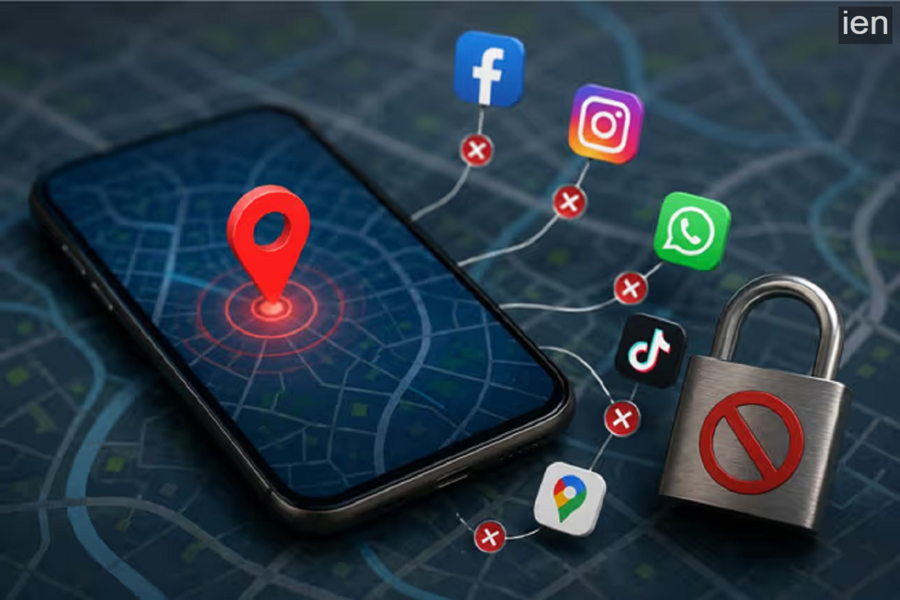
Many mobile apps collect location data in the background without your knowledge. Find out which settings to change on Android and iPhone to protect your privacy and save battery and data.
Smartphones have become an integral part of our lives, but they come with an issue many people are unaware of. Many mobile apps track your location not only when you are actively using them but also continuously monitor your activities in the background. This not only exposes your personal information to companies but also increases battery and mobile data consumption. The good news is that you can control this tracking in just a few minutes by adjusting a few simple settings.
Why do apps need your location?
Location access is essential for some apps. For instance, map apps need it to provide directions, cab-booking apps to identify pickup locations, and weather apps to provide local forecasts.
However, many social media, shopping, and ad-supported apps also collect location data. This allows companies to analyze your travel habits, favorite places, and shopping behavior. This information is subsequently used to display targeted advertisements.
How to stop location tracking on Android phones
If you use an Android smartphone, start by going to Settings and opening the 'Location' section. Here, you will find the 'App location permissions' option, where you can see which apps are accessing your location.
For apps that do not require constant location access, change the permission setting to "Only while using the app" or disable it entirely. Additionally, you can visit the 'Privacy Dashboard' to see which apps have accessed your location recently.
iPhone users should check these settings
iPhone users should go to Settings and open the 'Privacy & Security' section. Here, under 'Location Services,' you can view a list of all apps. If an app is set to "Always," you can change it to "While Using the App" or "Never." Additionally, Apple offers an option called "Precise Location." Turning this off ensures that apps receive information about your approximate area rather than your exact location.
Check permissions every few months.
Cybersecurity experts recommend reviewing location permissions after installing new apps or updating software. If a flashlight app, a simple game, or a shopping app repeatedly requests access to your location, it is important to question why it needs that information.
Users often grant all permissions in haste and subsequently forget about them. This is why periodically checking settings has become a crucial aspect of digital security.
It saves battery life, not just privacy.
The benefits of limiting location tracking extend beyond privacy. Location services running continuously in the background increase battery consumption and, in some cases, can also lead to higher mobile data usage.
If you want your smartphone to consume less data, extend battery life, and maintain control over your personal information, checking your location settings today would be a wise move.
