
Apps not installing and photos not saving? Here’s how to fix the 'phone storage full' issue..
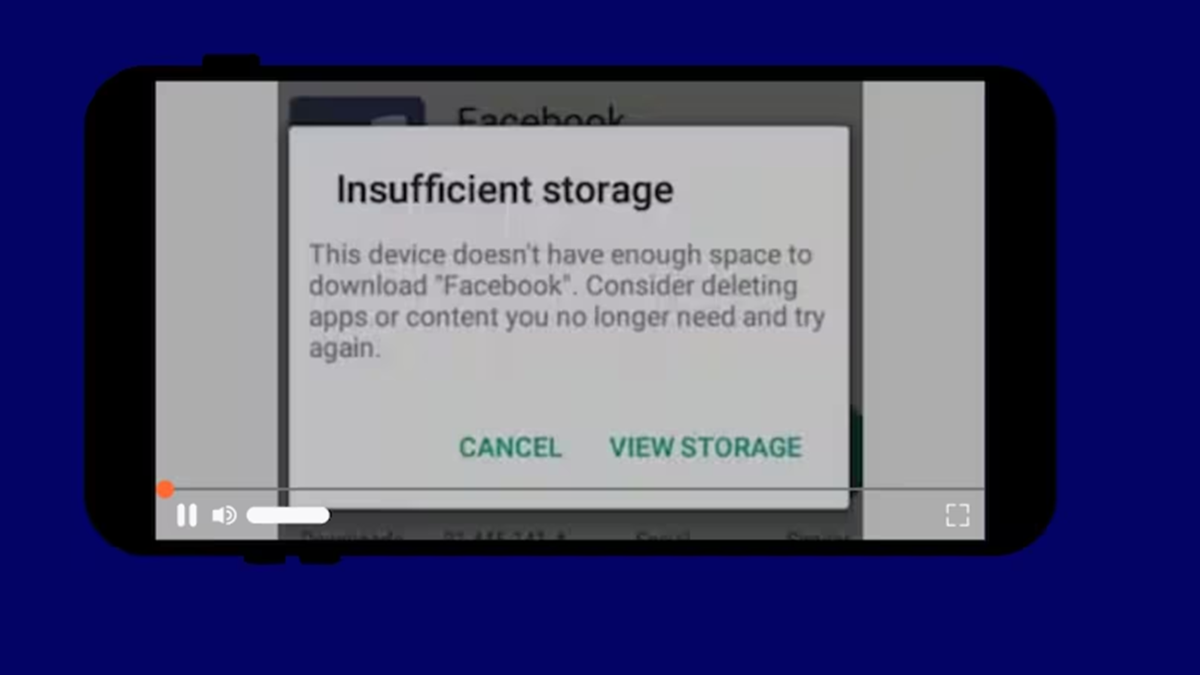
This is a common issue for many people. You might see available space when checking your phone's storage settings, yet receive a "Storage Full" message when trying to install an app or save a photo. While this can seem strange, there are simple reasons behind it. Let’s look at why this happens and how to fix it.
Phone storage functions in two ways: there is the total available space, and then there is space reserved for the system or apps. Sometimes, cache files, temporary files, or hidden files accumulate to such an extent that the system perceives the storage as full.
Apps like WhatsApp, Instagram, Google Chrome, and your Gallery generate a significant amount of cache. While this cache might not appear substantial, it actually occupies a considerable amount of space. Old files, downloads, or thumbnails in your "Downloads" folder can also contribute to the problem.
At times, the system storage or other partitions may become full, even while the user-accessible storage appears empty. On Android, many files remain hidden under categories like "Other" or "System." Temporary files created during app updates often fail to get deleted. Occasionally, the phone may even provide an incorrect report due to corrupted files or faulty indexing.
There are simple ways to resolve this. First, go to your phone's settings, open the "Storage" section, and identify which apps are consuming the most space. Then, clear the cache for those apps: go to Settings > Apps > [Select an App] > Storage > Clear Cache. Be careful not to select "Clear Data," as this will erase your login information and app settings. Make sure to clear the cache for apps like WhatsApp, Chrome, YouTube, Instagram, and your Gallery.
Another approach is to check your "Downloads" folder and recent files. Use your file manager app to access your Downloads, Bluetooth, and WhatsApp media folders, and delete any unnecessary files. You should also remove old voice notes, status updates, and videos. You can back up your media to Google Photos or another cloud service and then remove it from your phone.
Try restarting your phone; a restart often clears out temporary files and can resolve the issue. If the message persists, uninstall any unused apps—try removing large applications like games or editing tools. If your phone uses an SD card, move your media files onto the card.
If nothing else works, check your storage settings for an option to clear "Other" data or "Cached data." As a last resort, you can back up your phone and perform a factory reset—but only do this if all other options have failed.
Adopting a few simple habits can help prevent this issue. Regularly clear your cache, delete unnecessary files, and keep an eye on your storage usage. The "Storage Full" error, even when there appears to be free space, is usually caused by accumulated cache or hidden files. Properly clearing these out will help your phone run smoothly again and allow you to save new files without any trouble. A little bit of cleanup can resolve this entire issue.
Disclaimer: This content has been sourced and edited from News18 Hindi. While we have made modifications for clarity and presentation, the original content belongs to its respective authors and website. We do not claim ownership of the content.
