
Android Tips: How to extend Android phone battery life? Check out the step-by-step process...
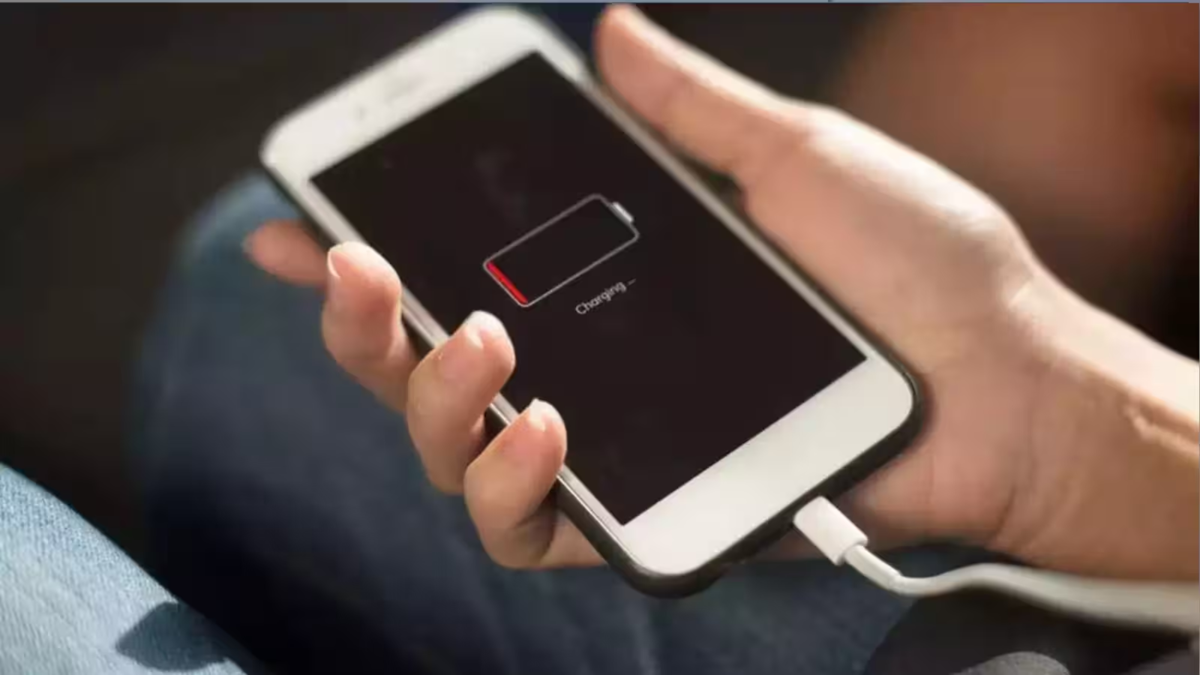
The battery on any Android smartphone inevitably begins to drain faster over time, regardless of its initial capacity. This happens because batteries lose some of their original capacity with every charging cycle, eventually degrading to the point where they are no longer usable. However, if you are a heavy user and your Android phone shuts down prematurely, adopting a few simple habits can help extend your battery life. Additionally, adjusting certain phone settings can improve battery longevity. There are also apps and processes that run in the background, consuming battery power without you even realizing it; tweaking these settings can help prevent unexpected shutdowns.
We have prepared a step-by-step guide to help you maximize your Android handset's battery life.
Reasons why Android phone batteries drain quickly
There are several reasons why your Android phone's battery might drain faster than expected. Constantly using your phone with high screen brightness can negatively impact battery life, as powering the display consumes a significant amount of energy. Similarly, if multiple unused apps and processes are running in the background, your phone may consume battery power without your knowledge.
Likewise, leaving connectivity features like Wi-Fi, mobile data, or Bluetooth on when not in use causes the phone to constantly search for other devices or networks, placing additional strain on the battery.
Improper screen timeout settings can also be a culprit. If the screen doesn't turn off automatically after a reasonable period, the display remains active even when the phone isn't being used, causing the battery to drain rapidly.
Furthermore, location services—including Google Maps and other navigation apps—continuously track your device's location. Google states that this causes your Android phone's battery to drain continuously, regardless of whether you are actively using the device. Additionally, in Light Mode, your smartphone consumes more battery power to display lighter colors—especially if it features an AMOLED display. However, it is worth noting that all phone batteries naturally degrade over time with use.
How to extend your Android phone's battery life
Turn on Adaptive Brightness: Enable Adaptive Brightness via the phone's Control Centre or Settings. This allows the phone's sensor to automatically adjust screen brightness based on ambient lighting, ensuring battery power is used only as needed.
Manually lower screen brightness: If the screen still appears too bright even with Adaptive Brightness enabled, lower the brightness manually. This can help the battery last longer.
Reduce Screen Timeout: Go to Settings and shorten the Screen Timeout duration. This prevents the screen from staying on unnecessarily when the phone isn't in use, thereby saving battery.
Turn off keyboard sound and vibration: Keyboard sounds and haptic feedback (vibrations) during typing consume battery power. You can disable these features under Settings > Keyboard Settings.
Manage notifications: Disable non-essential notifications. Allowing only important apps to send notifications can reduce battery consumption.
Limit background apps: This is a crucial step for saving battery. Restricting background app activity prevents unused apps from constantly running or refreshing in the background. You can manage this setting in the phone's Settings menu.
Turn on Battery Saver Mode: If your phone's battery is draining rapidly, enable Battery Saver Mode. You can easily activate this via Quick Settings or the Control Centre.
Use Dark Mode: Enabling Dark Mode can also help save battery. On phones with AMOLED displays, in particular, pixels in dark areas turn off, which can conserve power. To maintain optimal battery health, avoid repeatedly overcharging your phone. Also, do not wait for the phone to shut down completely due to a drained battery.
Avoid using the phone in extreme heat or cold. Extreme temperatures can affect the battery's capacity and lifespan.
If your phone is linked to Google or other accounts that you do not use, remove them. According to Google, this helps improve the Android phone's battery life.
Disclaimer: This content has been sourced and edited from Money Control. While we have made modifications for clarity and presentation, the original content belongs to its respective authors and website. We do not claim ownership of the content.
